Payouts
This section allows you to manage all types of financial disbursements within the organisation, including employee salaries, consultant payments, advances, loans, and reimbursements all from one place.
Payouts
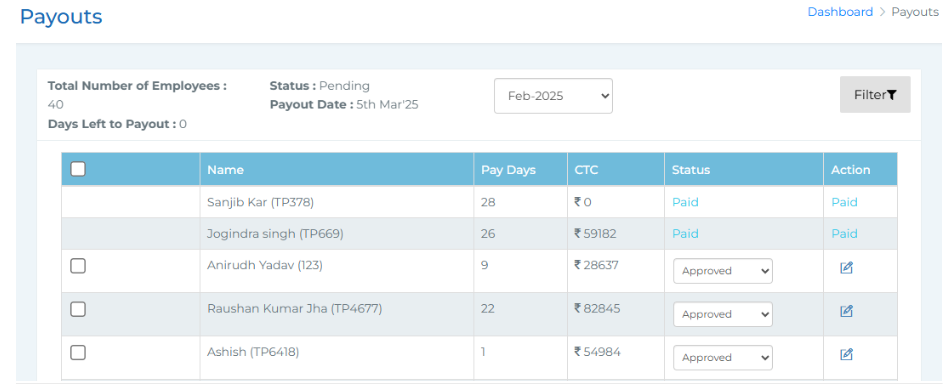 In this section, you will see the total number of employees, their payout status, days left to process the payout, and the scheduled payout date. You can select the desired month using the filter to view entries for that period. Additional filters allow you to search by employee name, status, organisation unit, designation, and department. The entries include details such as employee name, pay days, CTC, and payout status (which can be approved, held, or marked as paid if already done). The Action column lets you edit salary components like overtime, allowances, and deductions by entering the respective amounts and remarks. You can select individual or multiple employees at once by checking the box next to their names. Only employees whose attendance has been approved and whose calculated CTC is visible will be selectable.
Once selected, you can choose to Hold, Approve, or Record Payment:
● The Record Payment option is available only for employees whose status has been approved.
● When clicked, a form appears where you must enter payment details like date of payment and payment mode.
● You can also enable the option to notify employees via the mobile app so they can view their salary slips. After clicking Submit, the payout details will be processed and will appear in the Report section for tracking and reference.
Advances & Loans
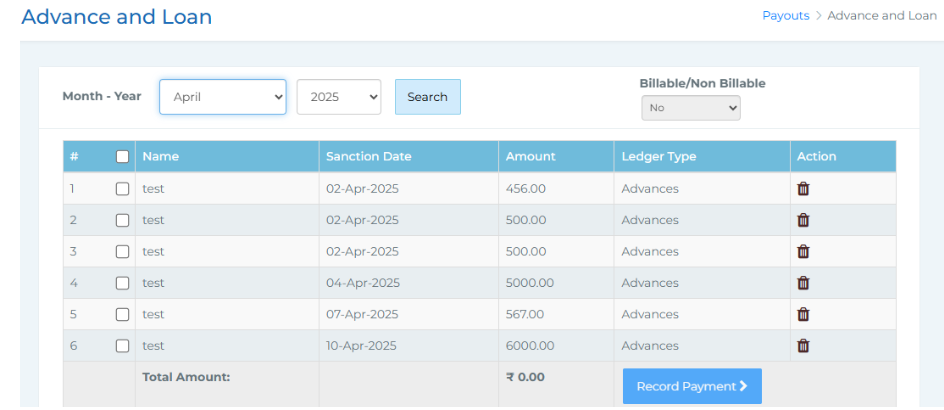 In this section, you can view all advance and loan requests raised through the Approvals > Vouchers section. You have filters to select the month and year, and you can choose individual or multiple employees at once. You’ll also have the option to mark whether the payment is billable or not.
After making your selection, click on Record Payment. A confirmation pop-up titled Approve Payroll will appear. Once you click Submit and Approve, you'll be directed to specify the payment date and payment mode. After submitting these details, the transaction will be reflected under your Payroll Liabilities.
Reimbursements
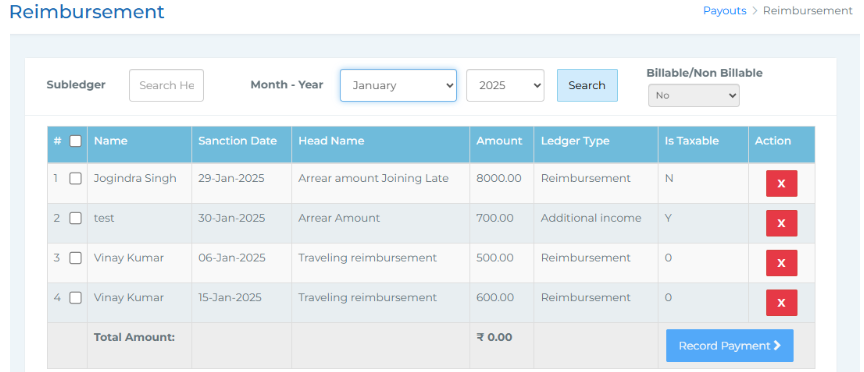 Here you can view all the reimbursement which is being approved in the approval section and now you can approve the payout for the same from here.
● You get a filter to search by sub ledger, month and year.
● You view details of employee reimbursement including employee name, sanction date, head name (bonus, additional income, travelling reimbursement etc), amount, ledger type, is taxable (Y- yes and N- no), action (whether you want to reject or not).
● You can select individual or multiple employees and beside the search bar select if you want to record it as billable or non billable.
● At last click on record payment and it will be recorded in records.