Attendance Reports
-
-
Check-In/Check Out Report -
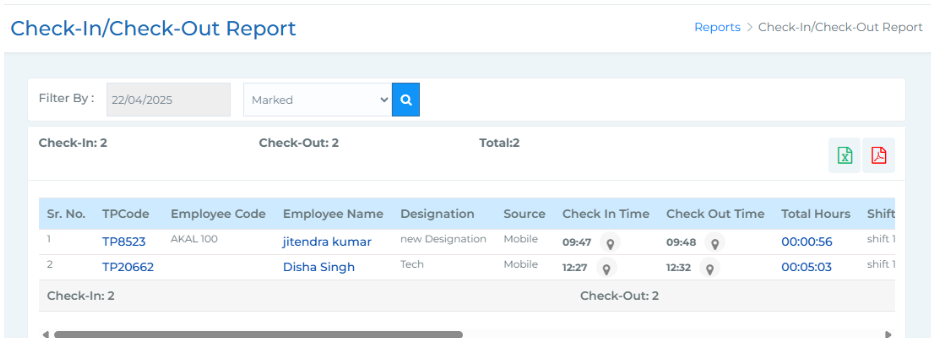
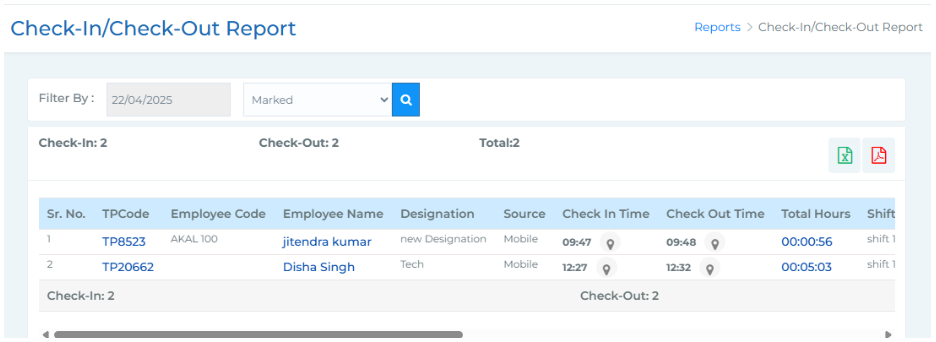
This report provides a comprehensive view of employees’ check-in and check-out details along
with total working hours. It includes fields like TP Code, Employee Code, Employee Name,
Designation, Source, Check In Time, Check Out Time, Total Hours, Shift Name, Auto Assign
Shift, Night Shift, Break, Department, Organisation Unit, Geofence Name, and an Action column
(used to reprocess and sync the record if data is not displayed).
2.
-
Biometric Punch Logs -
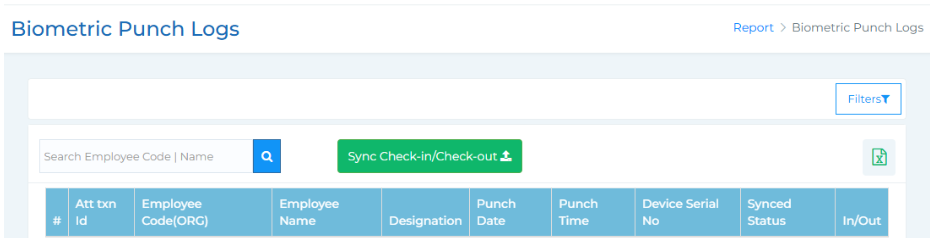
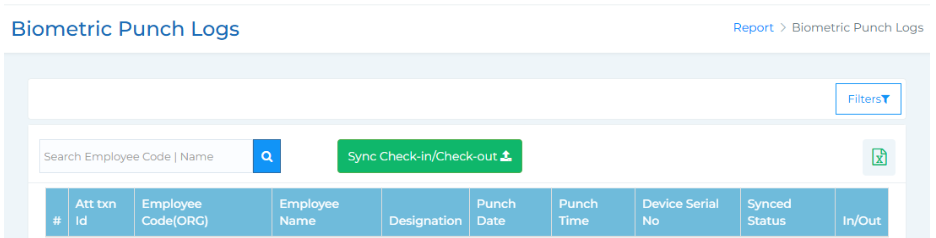
The Biometric Punch Logs section provides a detailed view of employee punch-in and punch-out
records captured through biometric devices. It allows accurate tracking of attendance and helps in
verifying working hours and sync status for each record.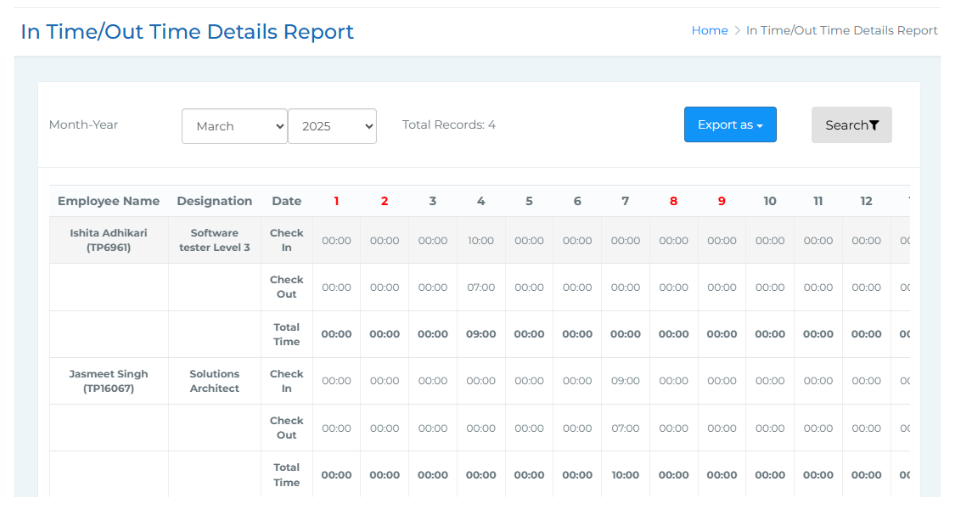
3.Monthly
IntimeIn time Out Time Report -
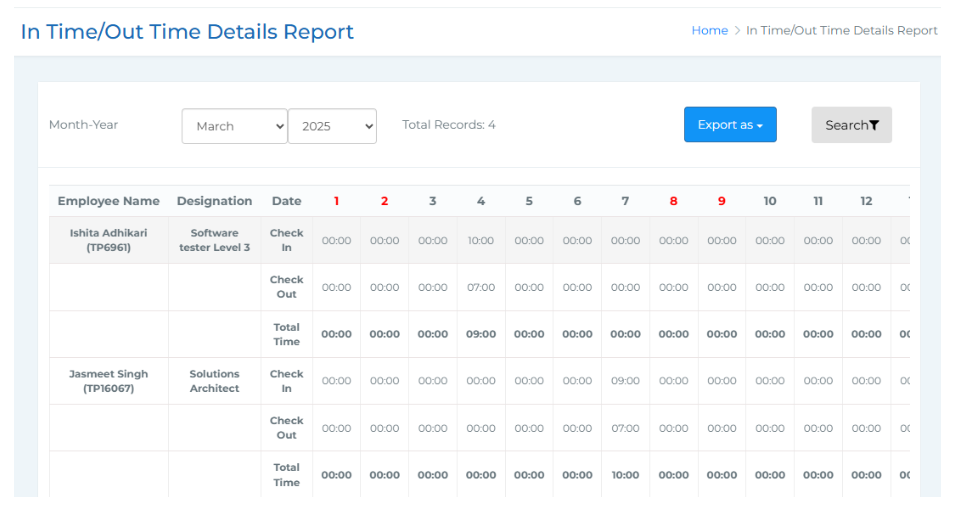
The Monthly In Time and Out Time Report provides a comprehensive view of employees' daily
check-in and check-out times for a selected month. It helps in tracking attendance patterns and
total working hours for each employee throughout the month.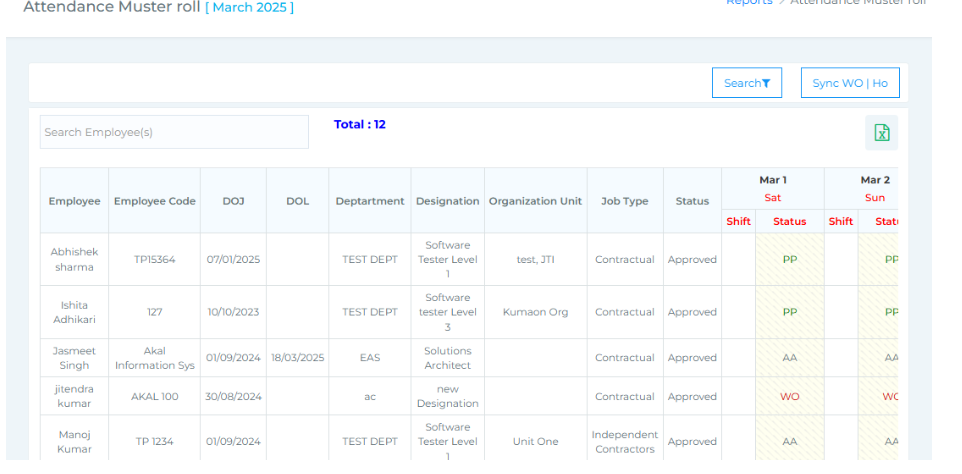
Attendance Muster Roll -
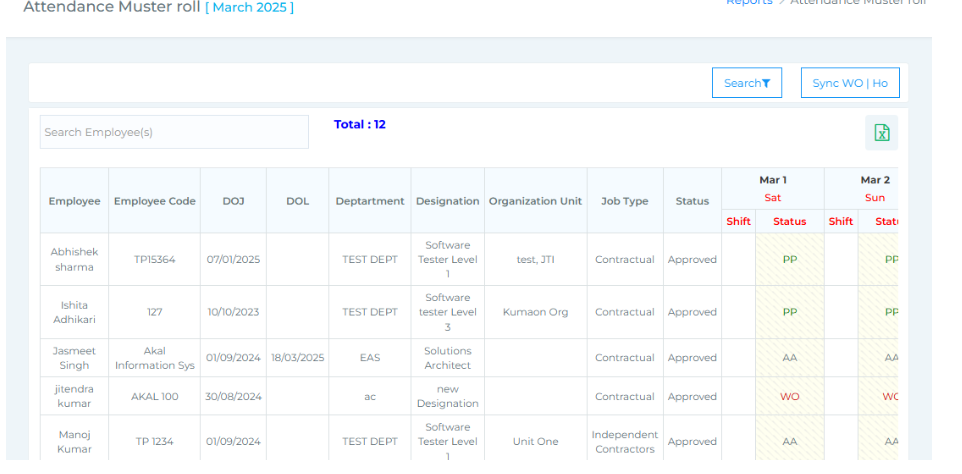
The Attendance Muster Roll offers a detailed monthly overview of employee attendance, clearly
showing the number of days present, leave types taken, paid days, and any loss of pay. Filters
allow you to search by employee name, month and year, status (Yet to Mark, Marked, Verified),
attendance status (Present, Absent, Leave, Overtime), as well as organizational unit, department,
and designation.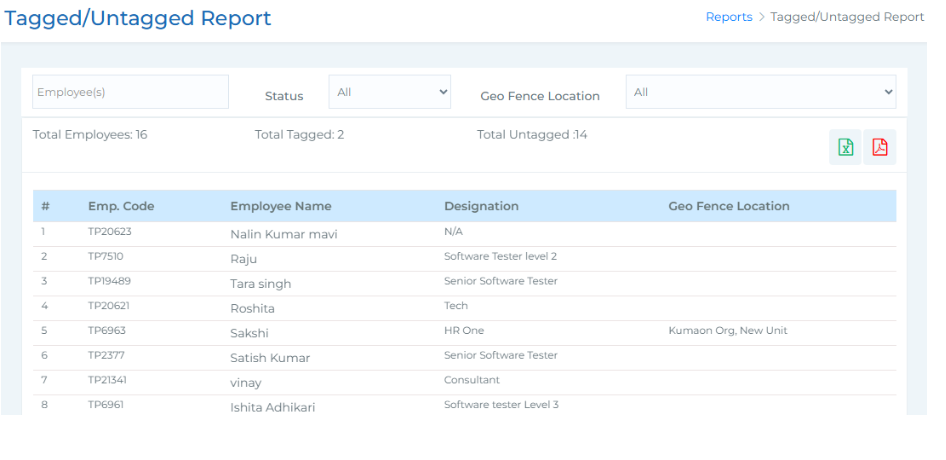 5.
5. Tagged/Untagged -
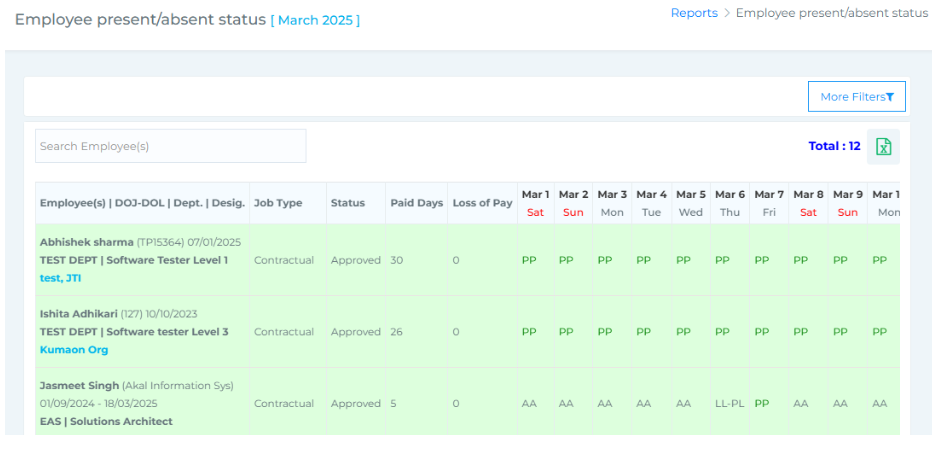
6.Employee Present/Absent Status -
The Employee Present/Absent Status Report provides a comprehensive view of employee
attendance status for a selected month. It includes a set of search filters that allow you to refine
results by employee name, month and year, attendance status (Present, Leave, Absent), status (Yet
to Mark, Marked, Verified), as well as organization unit, department, and designation.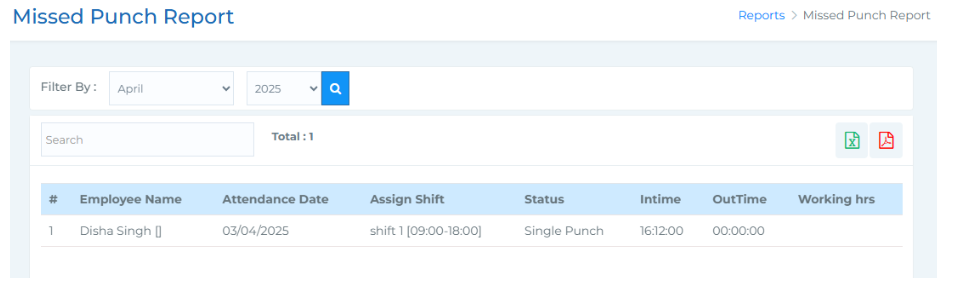
- 7. Missed Punch Report -
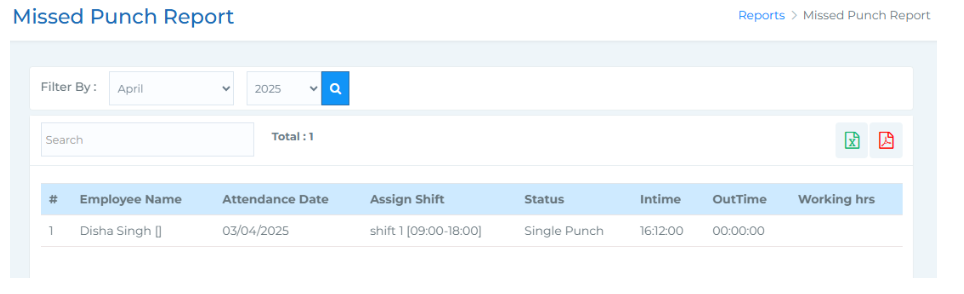
The Missed Punch Report provides details of employees who have missing punch entries
for the selected month. You can filter the report by month and year, and also search by
employee name to quickly locate specific records.
4.
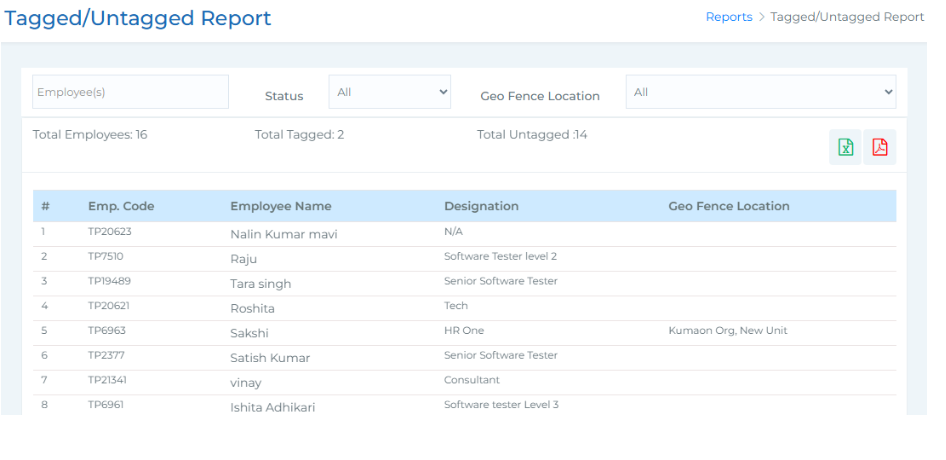
The Tagged and Untagged Report allows you to track employees who have been mapped
(or not) to geofencing locations within the organization. You can search for specific
employees using their names and apply filters such as status (Tagged or Untagged) and
Geofence Location, which includes a dropdown list of all configured geofencing sites.